The Vid0 Chrome extension is live: free YouTube analytics on every page
Vid0's free Chrome extension is live. Outlier scores, views per hour, keyword odds, tags and channel stats on YouTube, plus a YouTube Studio assistant.

11 min read
The Vid0 Chrome extension is out. You can add it to Chrome today, for free, and it works in Chrome, Edge, Brave and Arc.
We built it because research happens on YouTube, not in a dashboard. You search a topic, open a few videos, click through to a channel, and somewhere in there you decide what to make next. The extension puts the numbers you need at each of those steps, on the page you're already looking at.
This post covers everything it does, seven ways to use it in a normal week, what it costs, and what it never touches.
What is the Vid0 Chrome extension?
It's a browser extension that draws Vid0 data into YouTube's own layout. It reads the page you're on (video IDs, channel IDs, titles and view counts), asks the Vid0 API for public stats, and shows the answer next to the video, the search results or the channel header. It follows YouTube's light or dark theme, so it looks like part of the page.
It does two jobs:
- Research on youtube.com. Is this video actually doing well for its channel? Is this topic worth making at my size? What is this competitor doing that works?
- Checks in YouTube Studio. Before you publish: is the title strong, is the description doing its job, are the chapters and links in place, and when should it go out?
The full tour, with screenshots, is on the extension page. New to Vid0 itself? Here's what Vid0 is and why we built it.
How do you install it?
It takes about a minute:
- Add it to Chrome from the Chrome Web Store listing.
- Open YouTube. Outlier scores, views per hour, keyword scores and channel stats start showing straight away. No account needed.
- Optional: connect a free Vid0 account. Open the Vid0 popup, click Connect and sign in. That unlocks saving ideas, tracking competitors, your own channel's numbers in the top bar and the AI tools in Studio. No card needed.
What does it show on a YouTube video?
Open any video and the scorecard appears beside it. It answers the first question you should ask about any video you're studying: did it beat its own channel, or is it just a big channel doing normal numbers?
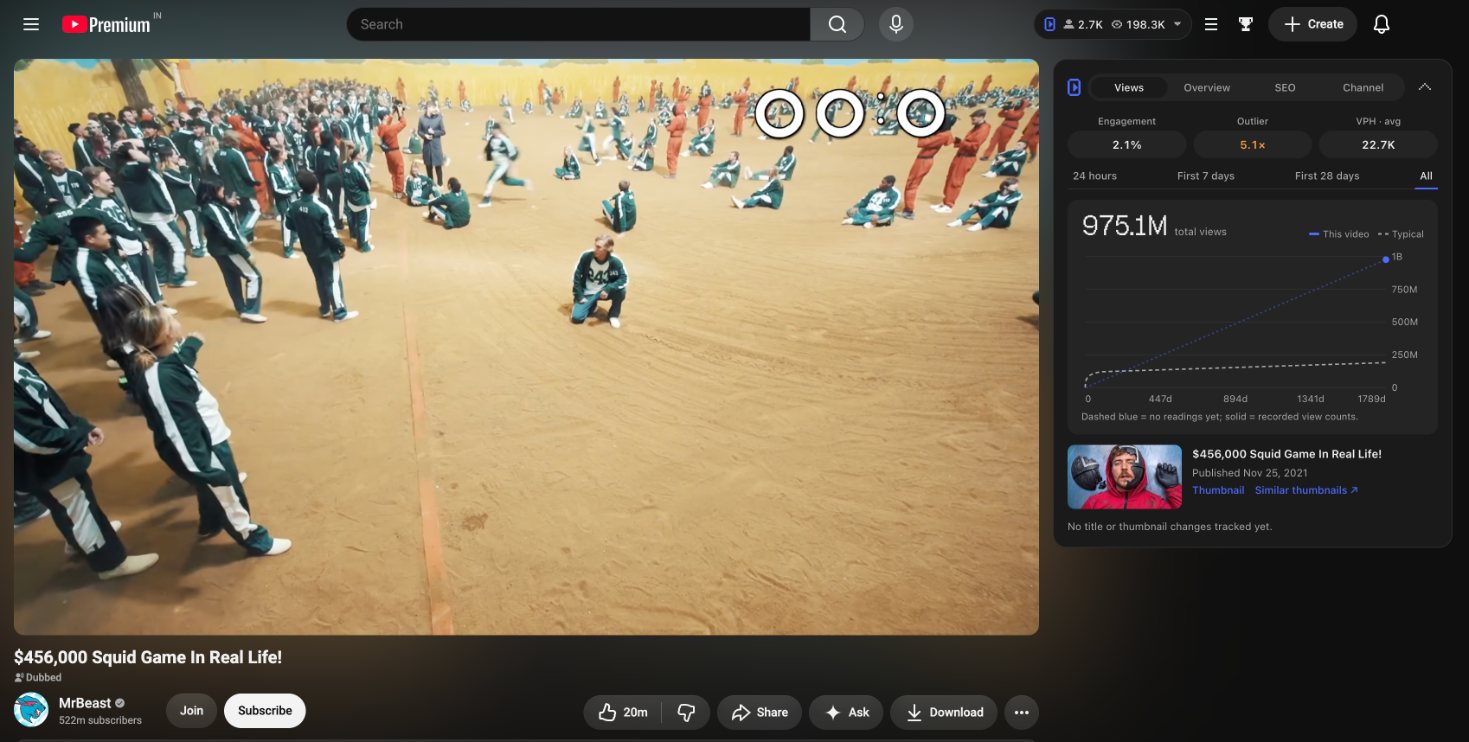
Here's what's on it:
- Outlier score. How the video is doing against the channel's typical video at the same age. A 5× means five times the usual views for a video that old. Comparing at the same age matters: a two-day-old video and a two-year-old video can't be judged on raw views. Here's what a YouTube outlier score is and how it's calculated.
- Views per hour (VPH). Both the live rate and the lifetime average, plus the engagement rate. Live VPH tells you if a video is still being pushed right now.
- Views chart. The video's views against the channel's typical path, so you can see when it took off.
- SEO tab. Every tag the video uses (copy them all in one click), the title length and the keywords it likely ranks for.
- Channel tab. Subscribers, median views, upload frequency, outlier rate, Shorts share and recent uploads.
- Change history. If the creator changes the title or thumbnail, Vid0 keeps the earlier version on your device, so you can see what they tested.
- Badges on related videos. VPH and outlier multiples on the "up next" column, so the next video worth studying stands out.
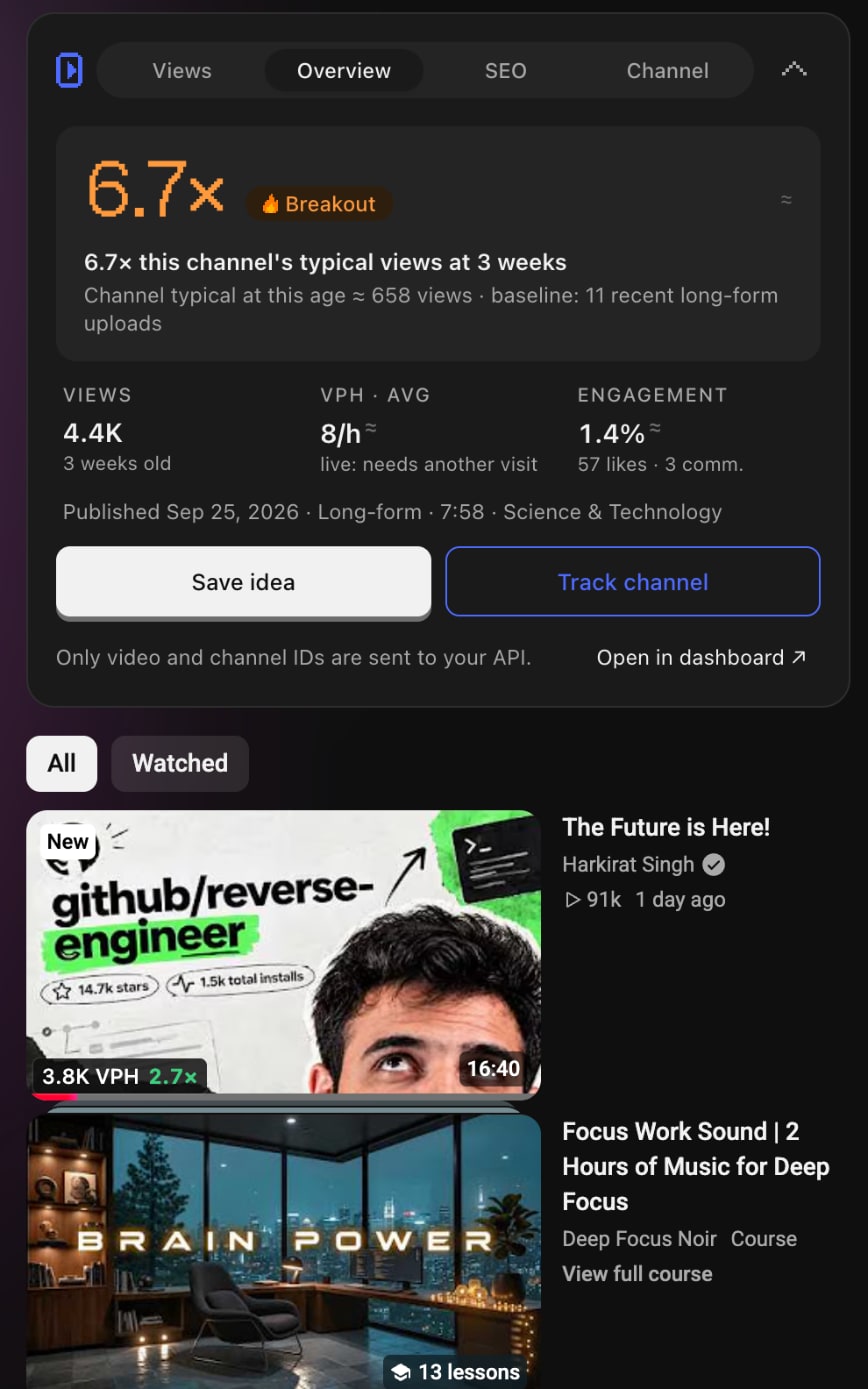
What does it show on YouTube search results?
Search is where most video ideas start, and where most bad ones should end. On every search results page Vid0 adds:
- Badges on every result: the outlier multiple and views per hour. A 0.7× video ranking first tells you something different from an 18× video ranking fourth.
- The Search companion: a panel next to the results with a keyword score (0 to 100), demand and competition, and whether the term is winnable for your size: how many of the top results come from channels like yours.
- Views per hour by video age, so you can tell an evergreen topic from a spike.
- Who owns the term: the channels that show up most, and the tags the results share.
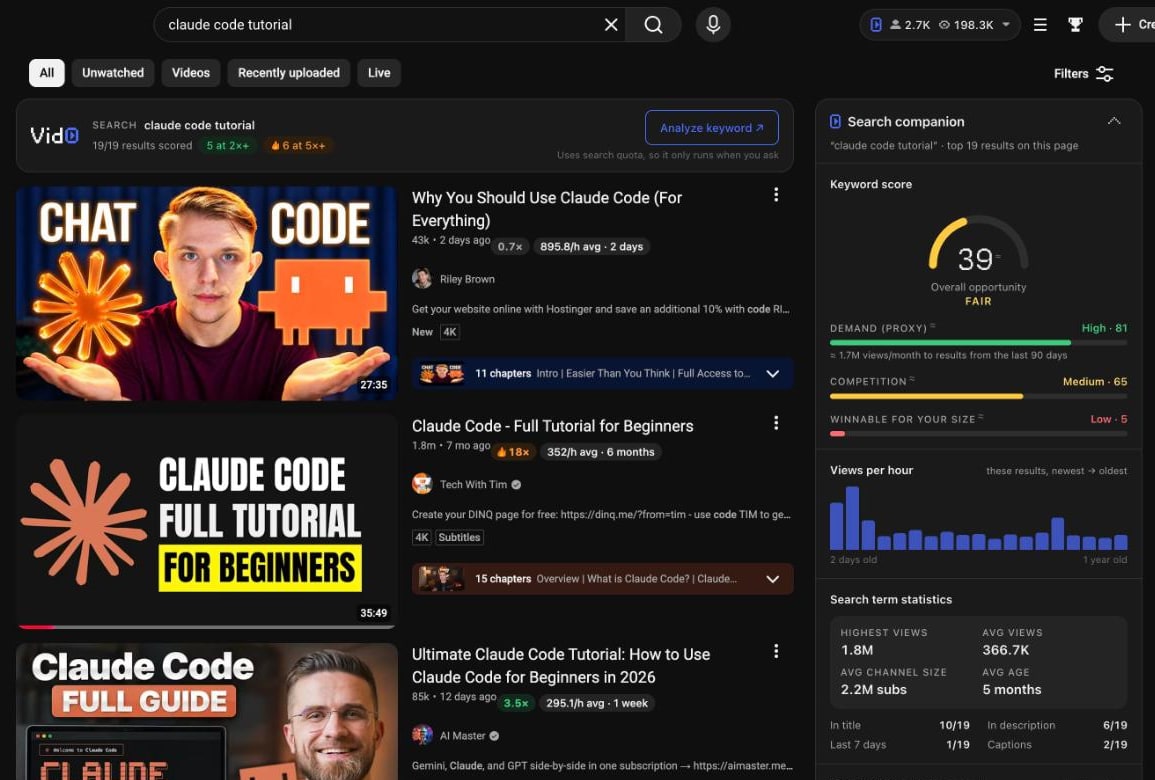
"Winnable for your size" is the number we care about most. A keyword with huge demand is useless to a 2,000-subscriber channel if every top result comes from a channel with 2 million. We wrote up the method in YouTube keyword research for small channels.
What does it show on a YouTube channel page?
Open any channel and you get quick stats right under the header: subscribers, average and median views per video, estimated earnings, upload frequency, average video length and the channel's top outliers.
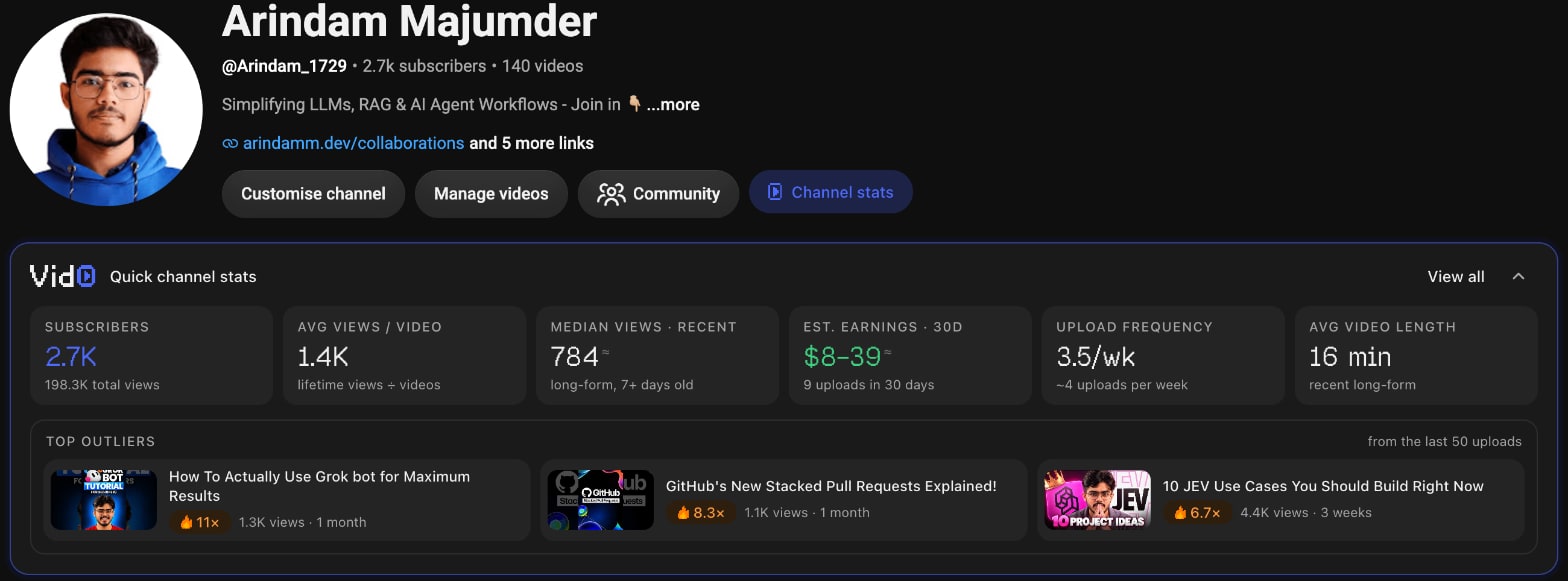
One click opens the full channel panel: every recent upload coloured by how it did (5×, 2× or typical), the days they post, their format mix and top outliers. From there you can run a channel audit or track the channel as a competitor.
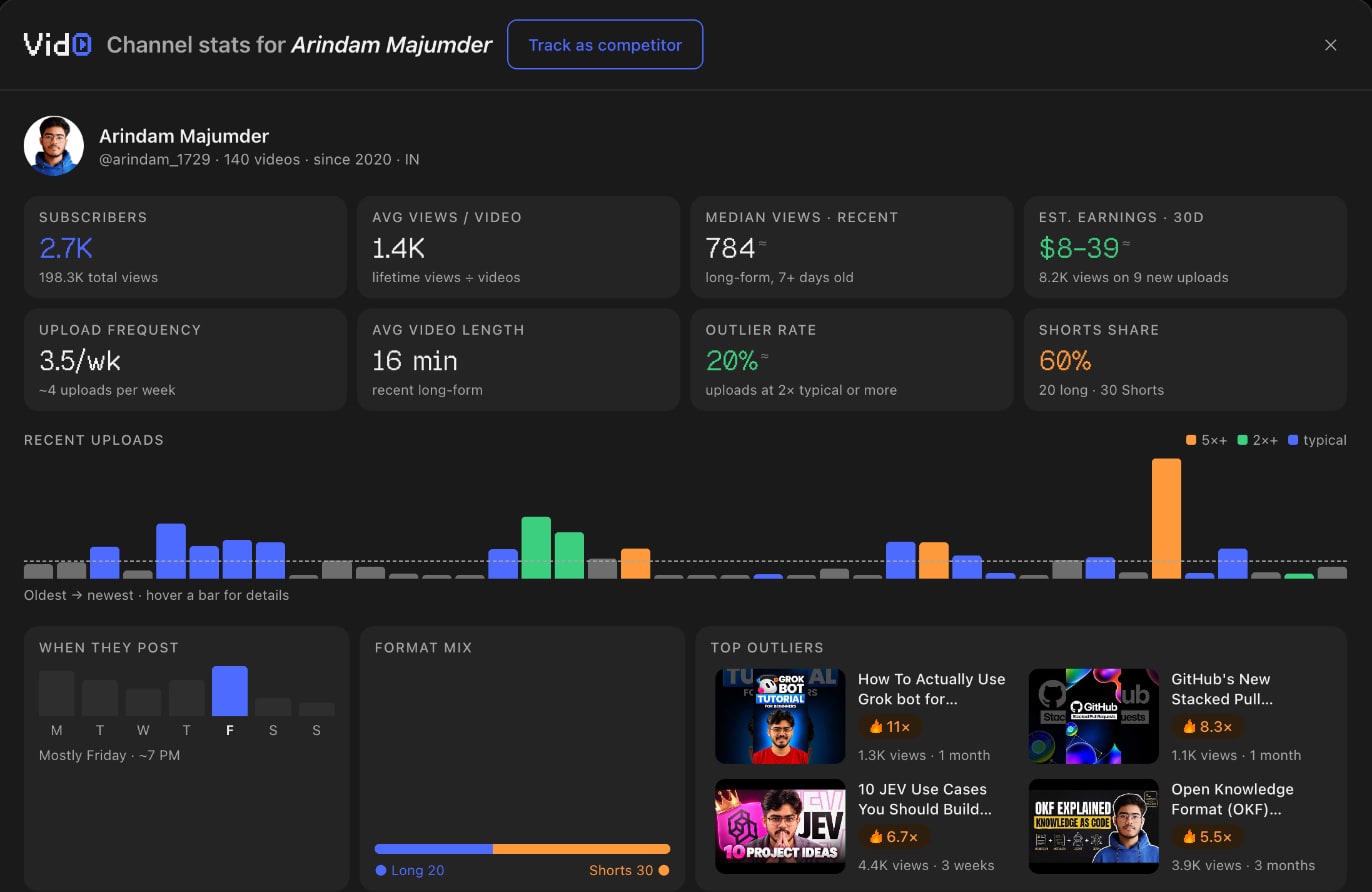
Median views is the number to look at first. Averages get dragged up by one viral video; the median tells you what a normal upload does. It's also the number brands use to price a sponsorship, which is why our sponsorship rate calculator starts from it.
What does it do inside YouTube Studio?
When you open a video's details page in YouTube Studio, Vid0 adds cards to Studio's own columns. Nothing is changed on YouTube unless you click to fill a field, and you still press Save yourself.
- Title ideas. Drafted from what your video is about and each scored 0 to 100 on the same six-point rubric as your current title. Insert one with a click, or copy it into a title A/B test.
- Description score and suggestion. The opening 150 characters, length, links, keywords, chapters and hashtags, each worth points, so you know what to fix first. Ask for a rewrite and it keeps your links and chapters.
- SEO checklist and recommended tags. A pre-publish checklist that re-runs as you type, plus tags from videos you could gain views from.
- Forecast check-in. Once a video is live: views so far against your channel's usual range for the same age.
- Best time to publish. The hours your last 50 uploads did best, worked out from your own channel. Here's how Vid0 finds your best time to post.
- Thumbnail preview. How your thumbnail looks in the home feed, on mobile and in "up next".
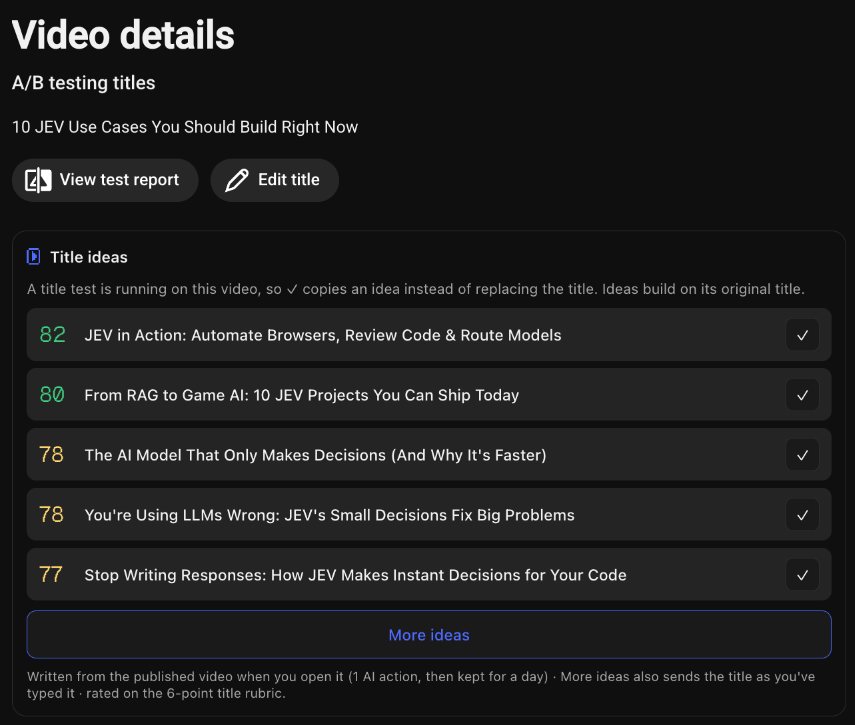
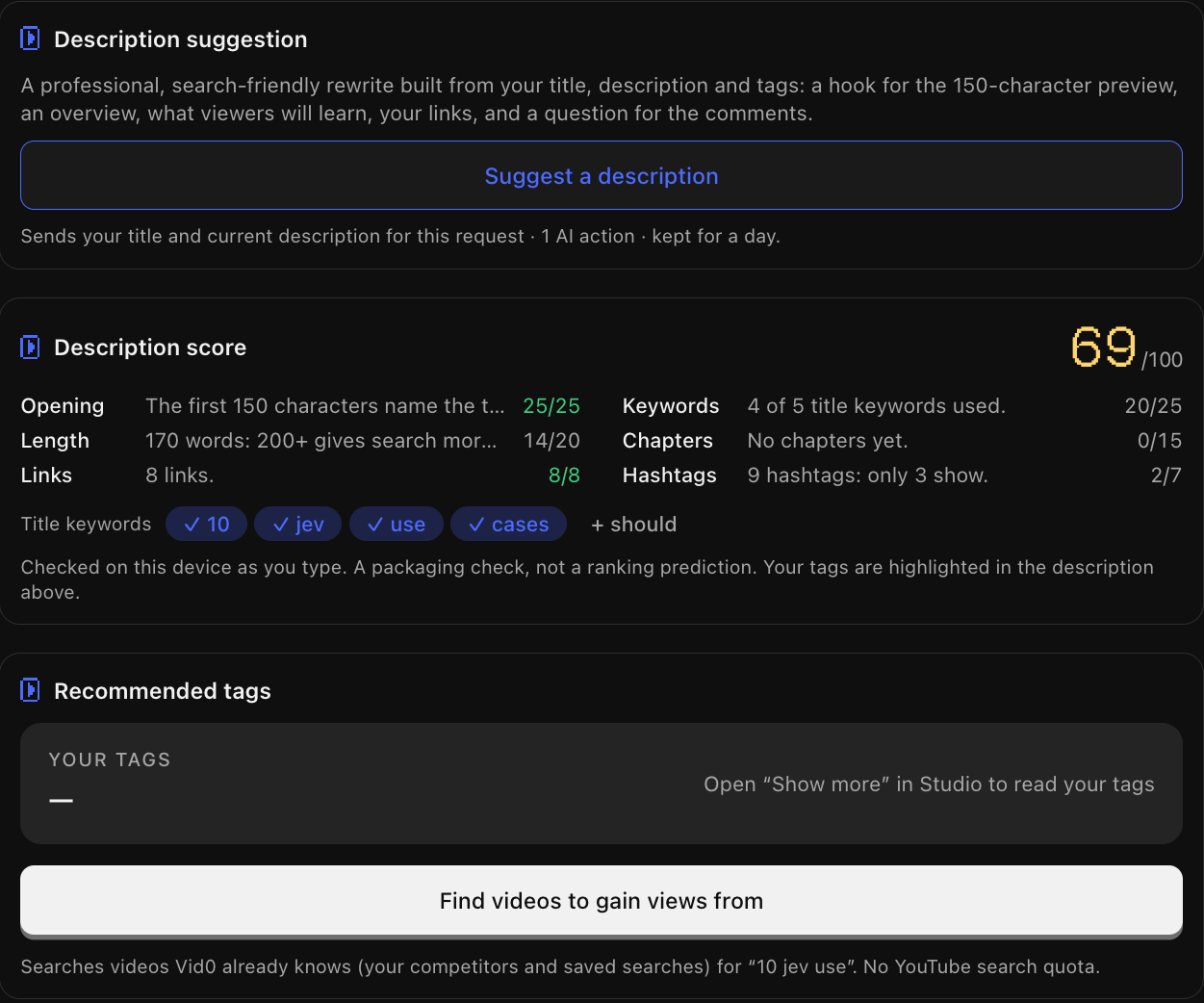
The title rubric is the same one behind our 6-point title checklist, and the free title and description checker runs the basic checks without installing anything.
What about your own channel?
Connect your channel at vid0.in (read-only, through Google) and your views, watch hours, subscribers, click-through rate and milestones show in YouTube's top bar on every page. It's the quickest way to see how today is going without opening Studio.
7 ways to use the Vid0 extension every week
The features are the parts. These are the jobs they add up to.
1. Check a video idea before you script it
Search the topic on YouTube. Look at the Search companion: is the keyword score decent, and is it winnable for your size? Then look at the badges. If the results are full of 0.5× to 1× videos, the topic is saturated. If small channels are showing up at 3× or more, there's room.
2. Work out why a video took off
Open a breakout video and read the scorecard top to bottom. The outlier score confirms it beat the channel. The views chart shows when it took off. The change history shows whether the creator swapped the title or thumbnail first. That's usually the real lesson, and it's in our guide to finding outlier videos.
3. Size up a competitor in 30 seconds
Open their channel. Quick stats give you median views and upload frequency. The channel panel shows which recent uploads hit 2× or 5×, and which formats they lean on. Track the channel and its outliers land on your Vid0 board.
4. Copy a video's tags (and know what they're worth)
The SEO tab lists every tag and copies them in one click. Tags are a small ranking signal, mostly useful for misspellings and related terms, so use them to see how a creator thinks about a topic, not as a growth hack.
5. Run a pre-publish check in Studio
Before you press Publish: title score, description score, chapters, hashtags and links, all in one column. Fix the lowest-scoring part first. Then check the thumbnail preview at mobile size, where most of your views come from.
6. Watch the first 24 hours
After you publish, the forecast check-in shows whether the video is ahead of or behind your usual range for its age. If it's well behind after a day, that's when a title or thumbnail change is worth trying.
7. Price a brand deal
Open your own channel (or a creator's, if you're a brand) and note the median views. That number, times your niche's CPM, is the basis of a fair sponsorship price. Our guide on how much to charge for a YouTube sponsorship walks through the formula.
How is it different from the vidIQ and TubeBuddy extensions?
vidIQ and TubeBuddy both have mature extensions with millions of users, and we built Vid0 to sit next to them on the same page. Here's where it's different:
| Vid0 | vidIQ | TubeBuddy | |
|---|---|---|---|
| Outlier score | On every video and search result, judged at the same age | Listed as a feature | Not listed on its pricing page |
| Keyword research | Keyword score plus "winnable for your size" | Keyword research | Keyword Explorer, on every plan |
| Studio assistant | Title ideas, description score, checklist and more | Yes | Yes |
| A/B testing and bulk editing | No | Not listed | Yes, on Legend |
| Works without an account | Scores, stats and the Search companion | Free plan needs an account | Free licence needs an account |
| Price | Free extension; paid plans from $12/month | Free plan; Boost $19/month | Pro $3/month |
Scroll sideways to see every column.
Prices and features are as of October 2026, from vidIQ's features and pricing pages and TubeBuddy's pricing page. "Not listed" means we couldn't find it there, not that it can't exist. For a full side-by-side, see Vid0 as a vidIQ alternative for small channels or as a TubeBuddy alternative for small channels. Our longer post compares vidIQ vs TubeBuddy vs Vid0 on price and features.
What does the extension cost?
The extension is free on every Vid0 plan, including Free. Scores, baselines, the Search companion and channel stats work without an account. The AI tools (title ideas, description suggestions, comment insights and channel audits) need a free Vid0 account and come with free uses every day. After that, they count against your plan's limits, the same as in the web app. Plans start at $12/month or ₹999/month; see pricing.
Is the Vid0 extension safe? What does it access?
We kept the permissions as narrow as Chrome allows:
- Two sites only: youtube.com (and studio.youtube.com) to draw its cards, and vid0.in for the Vid0 API and the page that connects your account. No access to any other site.
- Page data stays on your device. The API receives video and channel IDs, never your browsing history or your searches.
- Read-only on YouTube. It never uploads, edits or deletes anything. In Studio it fills a field only when you click, and you still save.
- No remote code. All of the extension's code ships in the package Chrome reviewed.
The privacy policy covers the extension in section 2.
What's next?
This is version 0.1.0, the first public release. If something breaks after a YouTube layout change, or there's a number you wish it showed, email [email protected]. Every message gets read.
Add Vid0 to Chrome, open a video in your niche, and see what's actually beating its channel.
FAQ
Is the Vid0 Chrome extension free?
Yes. The extension is free on every plan, and scores, stats and the Search companion work without an account. AI tools need a free account and include free uses every day.
Does the Vid0 extension work with vidIQ or TubeBuddy installed?
Yes. Vid0 picks spots on the page that leave room for other extensions and stacks above them where they share a column. Many people run both.
Which browsers does it work in?
Chrome, and Chromium browsers that install from the Chrome Web Store: Edge, Brave and Arc. It needs Chrome 111 or newer.
Can it change my videos or my channel?
No. It's read-only on YouTube. In Studio it can fill a title or description field when you click, but you still review and save the change yourself.
How does Vid0 calculate the outlier score?
It compares a video's views with the channel's typical video at the same age, so new and old videos are judged fairly. Outlier scores are Vid0 estimates, not YouTube data. Our explainer on what a YouTube outlier score is covers the method.
Can I see the tags on any YouTube video?
Yes. Open the video, go to the scorecard's SEO tab and copy all tags in one click. Without installing anything, the free YouTube tag extractor does the same for any public video.
Create your creator profile today
Your stats, rates and past collabs on one link, like vid0.in/@yourchannel. Share it with brands and get booked.
Keep reading
All posts →- ComparisonsResearch
10 vidIQ alternatives compared (2026): free and paid
10 vidIQ alternatives compared on price, free plans and features, from Vid0 and TubeBuddy to 1of10, ViewStats and OutlierKit, with October 2026 prices.
13 min read
- GrowthResearch
How to grow your YouTube channel: a practical playbook
A growth playbook for small and mid-size channels: pick a viewer, find proven ideas, package and hold attention, then use Shorts, analytics and collabs.
11 min read
- ResearchOutliers
How to find outlier videos on YouTube (and copy the right thing)
A step-by-step way to find the videos that broke out in your niche, compare them fairly, and see whether the topic, format or packaging did it.
5 min read
Find your next outlier
Vid0 shows which videos broke out in your niche, why they did, and what you could make next.